Create 3D-Xpress TM

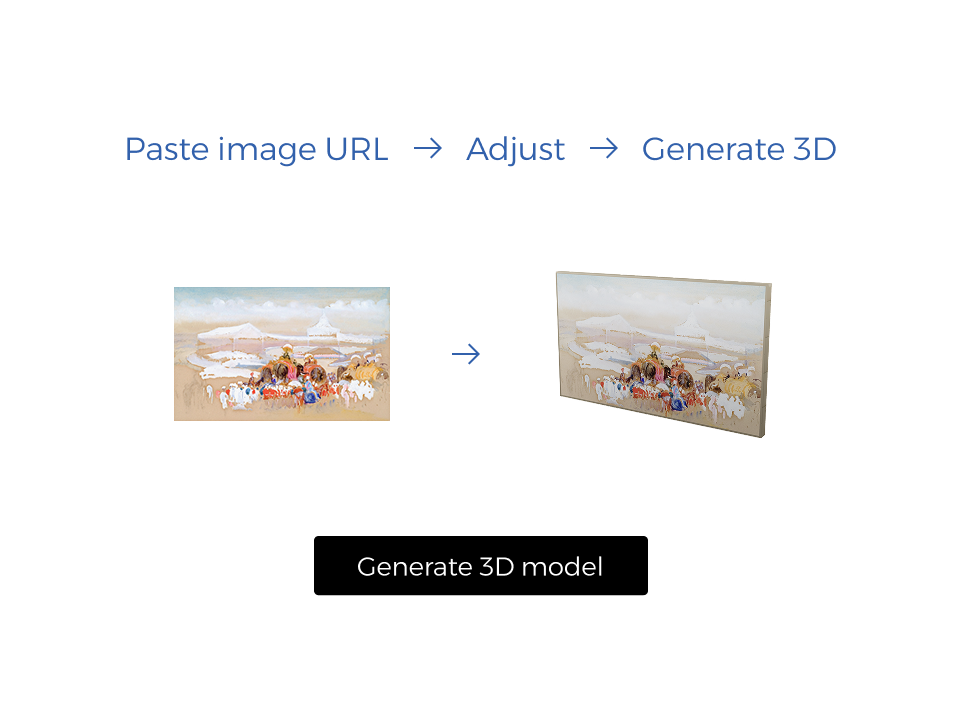
Simply paste an image URL from your website, and 3D‑Xpress will automatically generate a code snippet that creates a 'View-in-Your-Room' button, enabling a realistic 3D model ready for AR viewing.



No API key detected

Please add one via 'Manage API keys' above to activate 3D‑Xpress on your site

Generate snippet

Thank you! Your submission has been received!
Oops! Something went wrong while submitting the form.

WHY BYRST

Built for simplicity

Lightweight web components that easily integrate AR and 3D preview capabilities into any website β€” no SDKs, no dependencies, just copy and paste.

3d Rotate Y Axis Streamline Icon: https://streamlinehq.com

Instant 3D from any image

No 3D modeling skills needed. Paste an image URL and Byrst generates a perspective-correct 3D model on the fly.

Globe Website Check Icon from Sharp Duo set by streamlinehq.com

Works on any website

Shopify, Squarespace, Wix, WordPress, Webflow, or custom HTML. If you can paste code, you can use Byrst.

Shopify

Squarespace

Wix

Wordpress

Webflow

Ar Environment Icon from Sharp Duo set by streamlinehq.com

True-to-size AR

Artwork appears at the exact physical dimensions you specify, so buyers know exactly how it'll look on their wall.

Landscape View Icon from Sharp Duo set by streamlinehq.com

Perspective-correct scene view

With <byrst-scene>, buyers can preview artwork in a realistic room using homography-based placement.

Download Off Disable Icon from Sharp Duo set by streamlinehq.com

No app download

AR launches natively in Safari (iOS) and Chrome (Android). Desktop users get an instant QR code to their phone.

Customization Settings Gear Icon from Sharp Duo set by streamlinehq.com

Fully customizable

Override button text, styling, and behavior with CSS custom properties, slots, or external trigger elements.

before you start

You'll need a Byrst API key

An API key authenticates your components and links usage to your account. It takes under a minute to create β€” you only need to do this once.

1

Log in or create a free Byrst account at app.byrst.com

2

Go to Account β†’ Manage API Keys

3

Generate a new key and copy it

4

Log in or create a freeAdd it as the api-key attribute on any component

BEFORE YOU START

Add the Global Snippet (once per site)

Paste this before the closing </body> tag. It loads the Byrst library and configures your API key.

HTML - Gloabal Snippet

Copy
<link rel="modulepreload"
     href="https://cdn.byrst.com/npm/@byrst/web-components/@0.0.4/byrst-web-components.esm.js"
     as="script">

<script type="module">
  import "https://cdn.byrst.com/npm/@byrst/web-components/@0.0.4/byrst-web-components.esm.js";
  const apiKey = "YOUR_API_KEY";
  if (apiKey) {
    window.sessionStorage.setItem("byrst_api_key", apiKey);
  }
</script>

add COMPONENTs

Three components, one library

Choose the component that fits your use case. All share the same CDN script tag.

<byrst-ar>

AR View

The primary component. Adds a "View in Your Room" button that launches AR on mobile or shows a QR code on desktop. Accepts an image URL, GLB model, or Byrst project ID.

Basic usage

Copy
<byrst-ar
  model="https://example.com/artwork.jpg"
  width="24"  height="36"  units="in"
  anchor="wall">
</byrst-ar>
Attribute Type Default Description
model string β€” Image URL, GLB URL, or Byrst project ID
width number β€” Physical width (required for image URLs)
height number β€” Physical height (required for image URLs)
units string β€” mm | cm | in | ft | yd
depth number 1 Depth of 3D-Xpress model (image URLs only)
anchor string wall wall or floor
lock-size boolean true Prevent resizing in AR
btn-text string β€” Override button label
api-key string β€” Your Byrst API key
trigger-element-id string β€” ID of external trigger element

<byrst-scene>

Scene View

Preview artwork placed in a room with perspective-correct rendering. Supports multiple artworks with size options via JSON, or a single artwork via inline attributes.

Multiple artworks (JSON)

Copy
<byrst-scene src="./artworks.json"></byrst-scene>

Multiple artworks JSON format (artwork.json)

Copy
[
  {
    "name": "Sunset Over Mountains",
    "image": "https://example.com/sunset.jpg",
    "defaultDimension": 0,
    "dimensions": [
      { "label": "Small", "width": 30, "height": 40, "unit": "cm" },
      { "label": "Large", "width": 60, "height": 80, "unit": "cm" }
    ]
  }
]

Single artworks (JSON)

Copy
<byrst-scene
  image="https://example.com/art.jpg"
  name="Sunset Over Mountains"
  default-dimension="0"
  dimensions="[{&quot;label&quot;:&quot;Small&quot;,&quot;width&quot;:30,&quot;height&quot;:40,&quot;unit&quot;:&quot;cm&quot;}]">
</byrst-scene>
Attribute Type Default Description
src string β€” Path to JSON file with artwork array
image string β€” Single artwork image URL
name string β€” Artwork display name
dimensions JSON string β€” Array of size options
default-dimension number 0 Zero-based index of default size
full-screen boolean false Open in browser fullscreen
hide-ui boolean false Auto-open, hide default button
api-key string β€” Your Byrst API key

<byrst-3d-xpress>

3D-Xpress Creator

An interactive model builder. Users can crop and adjust the image and generate a 3D model on the fly. Great for letting sellers create their own AR-ready assets.

Basic usage

Copy
<byrst-3d-xpress
  image-url="https://example.com/artwork.jpg"
  width="40"
  height="40"
  units="in">
</byrst-3d-xpress>
Attribute Type Default Description
image-url string β€” Public URL to JPEG, PNG, or WEBP image
width number β€” Physical width of model
height number β€” Physical height of model
units string β€” mm | cm | in | ft | yd
depth number 1 Depth of generated model
api-key string β€” Your Byrst API key

quick start

Set up in 2 minutes

Two snippets are all you need. Copy, paste, done.

1

Add the Global Snippet (once per site)

Paste this before the closing </body> tag. It loads the Byrst library and configures your API key.

HTML - Gloabal Snippet

Copy
<link rel="modulepreload"
     href="https://cdn.byrst.com/npm/@byrst/web-components/@0.0.4/byrst-web-components.esm.js"
     as="script">

<script type="module">
  import "https://cdn.byrst.com/npm/@byrst/web-components/@0.0.4/byrst-web-components.esm.js";
  const apiKey = "YOUR_API_KEY";
  if (apiKey) {
    window.sessionStorage.setItem("byrst_api_key", apiKey);
  }
</script>
2

Add the Model Snippet (per artwork)

Place this wherever you want the "View in Your Room" button to appear. Replace the model URL with your image and set the real-world width, height, and units.

HTML - AR View Snippet

Copy
<byrst-ar-view
  model="https://example.com/your-artwork.jpg"
  width="40"
  height="40"
  depth="1"
  units="in">
</byrst-ar-view>
πŸ’‘ Tip: The model attribute accepts a direct image URL (JPEG, PNG, or WEBP) already hosted on your site. Byrst converts it into a 3D model automatically β€” no uploads needed.

costomization

Make it yours

Three ways to trigger the viewer, plus events to hook into your own logic.

Option A β€” Style with CSS variables

Override any visual property directly on the component's style attribute. These apply to all three components.

Styled default button

Copy
<byrst-ar-view
  model="https://example.com/artwork.jpg"
  width="40" height="40" units="in"
  btn-text="See it in AR"
  style="--background-color: #007AFF;
         --border-radius: 12px;
         --font-family: 'Inter', sans-serif;
         --padding: 12px 24px;">
</byrst-ar-view>
CSS VariableDefaultDescription
--background-colorblackButton background
--text-colorwhiteButton text color
--icon-colorwhiteButton icon color
--icon-width20pxIcon size
--border-radius0pxButton border radius
--font-familyMontserratFont for button and dialogs
--font-size1remButton font size
--padding9px 15pxButton padding
--width100%Button width
--height100%Button height

Option B β€” Replace the button with a slot

Place your own element inside the component with the matching slot attribute. Each component uses a different slot name β€” using the wrong name will silently fail.

ComponentSlot attribute value
<byrst-ar-view>slot="ar-view-btn"
<byrst-scene>slot="scene-launch-btn"
<byrst-3d-xpress>slot="xpress-btn"

AR View - custom slot button

Copy
<byrst-ar-view
  model="https://example.com/artwork.jpg"
  width="40" height="40" units="in">
  <button slot="ar-view-btn">See it on your wall</button>
</byrst-ar-view>

Option C β€” Use an external trigger

If your button lives elsewhere on the page, point the component at it with trigger-element-id. Pair with hide-ui to hide the default button.

External trigger

Copy
<!-- Your button, anywhere on the page -->
<button id="my-ar-button">View in Your Room</button>

<!-- The component, hidden, wired to your button -->
<byrst-ar-view
  trigger-element-id="my-ar-button"
  hide-ui
  model="https://example.com/artwork.jpg"
  width="40" height="40" units="in">
</byrst-ar-view>

Listening for events

Components emit events you can listen for to integrate with your own application logic.

EventFired byWhen
setup-complete All components After the click handler is initialized. The component is ready to use.
model-complete <byrst-3d-xpress> When the user presses "Done" after creating a 3D model. Includes config in event.detail.

Listening for setup-complete

Copy
<script>
  const viewer = document.getElementById("viewer");
  viewer.addEventListener("setup-complete", () => {
    console.log("Byrst component is ready!");
  });
</script>